How to change your plan or billing details
Upgrade, downgrade, cancel, or update your card from the Account page. Sliver uses Stripe's hosted billing portal.
3 min read · updated 2026-05-20
- Step 01
Open Billing
Open your account menu and choose Account or Billing. The billing section shows your current plan, monthly usage, and a Manage subscription button.
Screenshot pendingBilling tab with current plan and manage button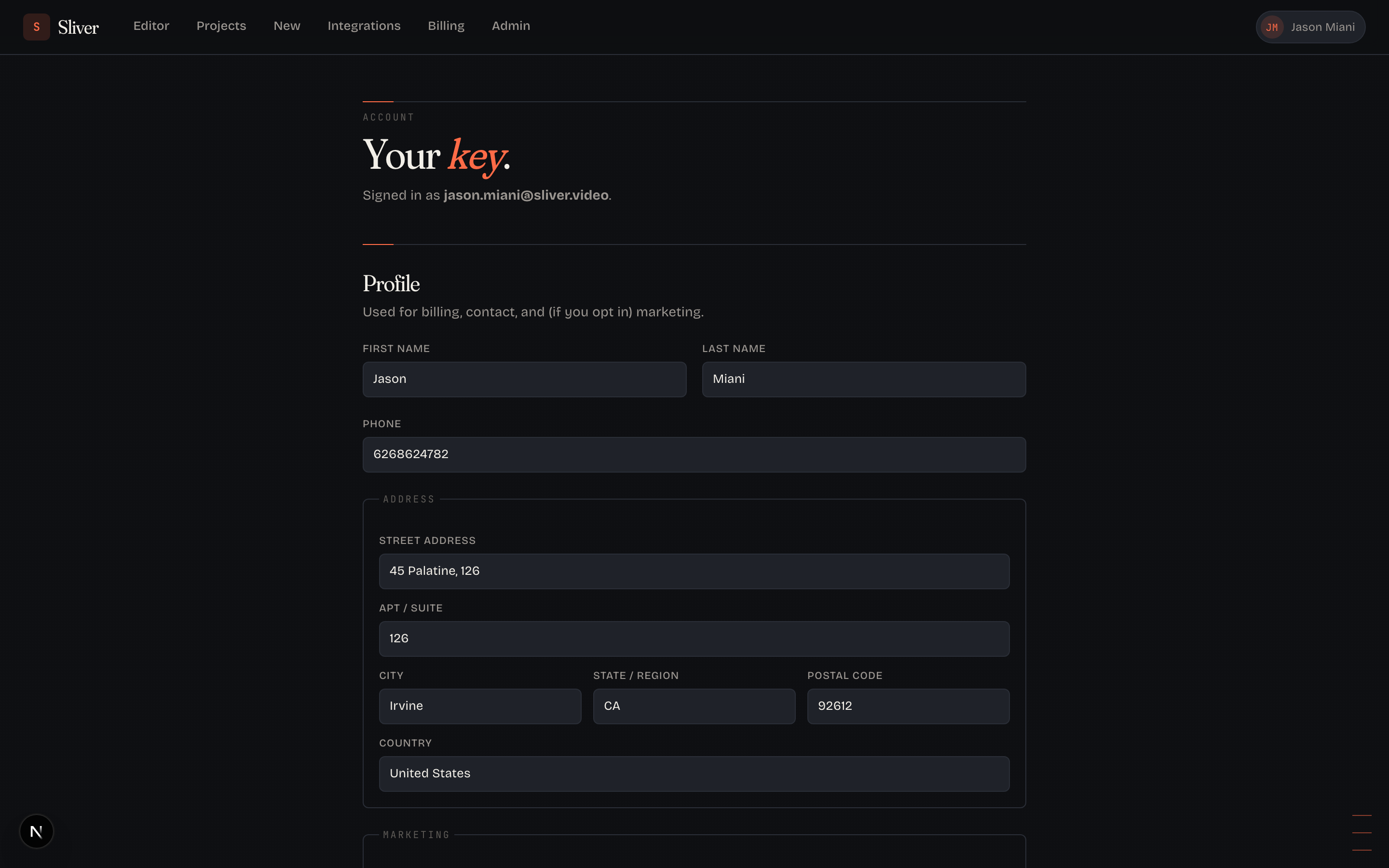
Billing and card changes happen in Stripe's hosted portal. - Step 02
Launch the Stripe portal
Click Manage subscription. Stripe opens a secure portal where you can switch plans, update your card, change billing cycle, download invoices, or cancel.
- Step 03
Understand plan changes
Upgrades usually apply immediately and are prorated by Stripe. Downgrades typically take effect at the end of the current billing period, so you keep the higher tier until then.
- Step 04
Cancel when needed
Cancel from the Stripe portal. You keep access through the end of the current billing period. Download any clips you want to keep before your access ends.
Good to know
Receipts and invoices
Receipts are emailed automatically by Stripe. Past invoices are available inside the Stripe portal.
Render or upload problems
If a source upload, render, or export fails in a way that blocks your work, email support@sliver.video with the project name and what happened.
Related
Was this article helpful?
If something here is wrong, out of date, or unclear, email support@sliver.video and we’ll fix it. Real humans read every message.