Editor keyboard shortcuts
The desktop shortcuts for playback, trimming, clip navigation, and opening the in-app shortcut reference.
2 min read · updated 2026-05-20
- Step 01
Playback
Space plays or pauses. Left Arrow and Right Arrow step through the preview. Shift+Left and Shift+Right jump farther through the clip.
- Step 02
Trim
I sets the in point at the current playhead position. O sets the out point. Use the timeline handles when you want to drag the cut visually.
- Step 03
Move between clips
Up Arrow and Down Arrow select the previous or next clip in the list so you can review a generated batch quickly.
- Step 04
Split and delete
B splits the selected clip at the playhead. Delete or Backspace removes the selected clip from the project.
- Step 05
Open the shortcut reference
Press ? to open the in-app shortcut overlay. Press Escape to close it.
Screenshot pendingShortcuts help overlay open over the editor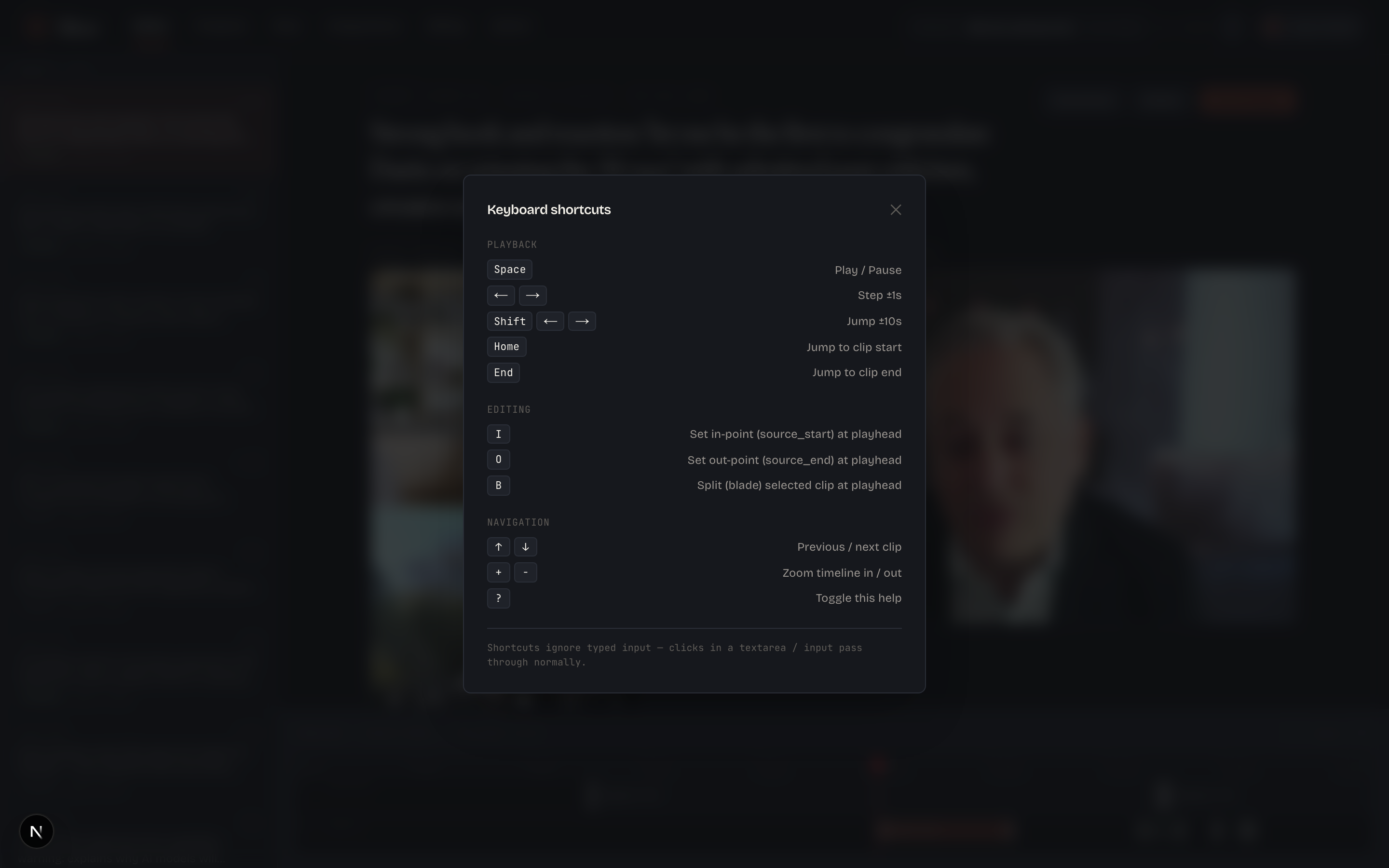
Keyboard shortcuts are desktop-first. Mobile exposes touch controls for the core trim flow.
Good to know
Text fields take priority
If your cursor is inside the AI refine prompt, a title field, or another text input, keyboard shortcuts do not fire. Click outside the field first.
Related
Was this article helpful?
If something here is wrong, out of date, or unclear, email support@sliver.video and we’ll fix it. Real humans read every message.