How to review and edit generated clips
Open the editor, review Sliver's suggested clips, adjust timing, change framing, edit captions, and save a new render.
5 min read · updated 2026-05-20
- Step 01
Pick a clip from the list
The clip list shows every generated short and longer edit for the project. Select a clip to load its preview, timeline, framing controls, captions, overlays, title, and notes.
Screenshot pendingSliver editor showing generated clips ready to review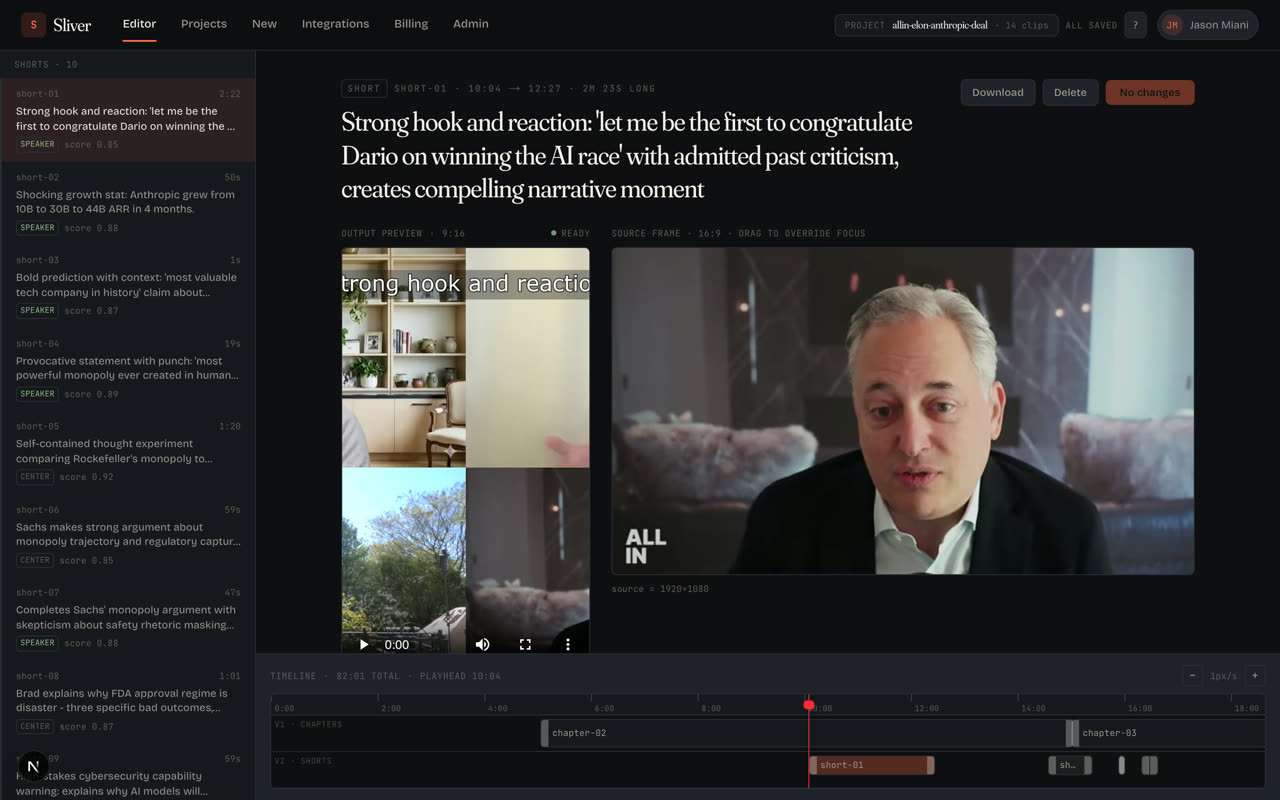
Generated clips include a title, score, timing, preview, and editable settings. - Step 02
Preview the current render
Use the output preview to watch the rendered clip. If a clip is still rendering, Sliver keeps the last playable render mounted until the replacement is ready.
- Step 03
Trim the start or ending
On desktop, drag the timeline handles or use the time range fields. On mobile, pause the preview at the moment you want and use the In or Out controls. Save the change to queue a fresh render.
- Step 04
Choose a framing mode
Center keeps the crop in the middle. Speaker follows the person talking. Manual lets you draw a custom crop on the source frame. Facecam stacks a selected facecam region above the gameplay or screen action.
- Step 05
Control captions and overlays
Word-by-word captions are enabled by default. You can turn them off, use a custom subtitle file, or add burned-in text overlays such as a hook, label, callout, or short title.
Screenshot pendingCaption and text overlay controls in Sliver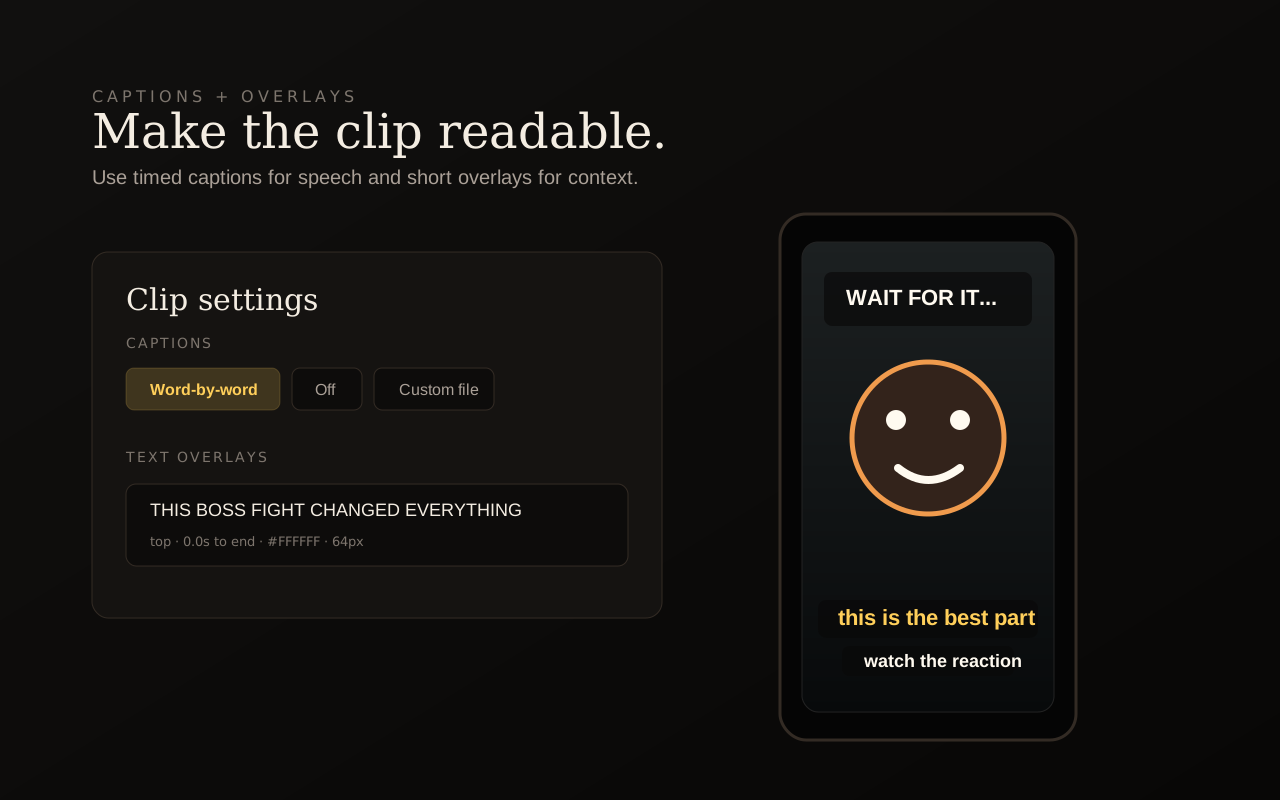
Captions and overlays are burned into the exported MP4, so they appear on every platform. - Step 06
Save and wait for the render
Edited clips show an unsaved or edited state until you save. After saving, the preview area shows render status and refreshes automatically when the new MP4 is ready.
Good to know
There is no separate Save for the project
Clip settings are saved per edit. Use Save on the clip after changing trim, framing, captions, overlays, title, reason, or notes.
Dirty clips need a fresh render before export
If a clip says edited or render needed, export waits for the new render. Use the render or save action before downloading the final MP4.
Related
Was this article helpful?
If something here is wrong, out of date, or unclear, email support@sliver.video and we’ll fix it. Real humans read every message.