How to use captions and text overlays
Control burned-in captions, add short text overlays, and keep clips readable on mobile feeds.
3 min read · updated 2026-05-20
- Step 01
Choose a caption mode
Word-by-word captions are the default for shorts. Choose Off for a clean output with no burned-in subtitles, or Custom file when you have a hand-edited .ass subtitle file.
Screenshot pendingSliver caption mode and text overlay controls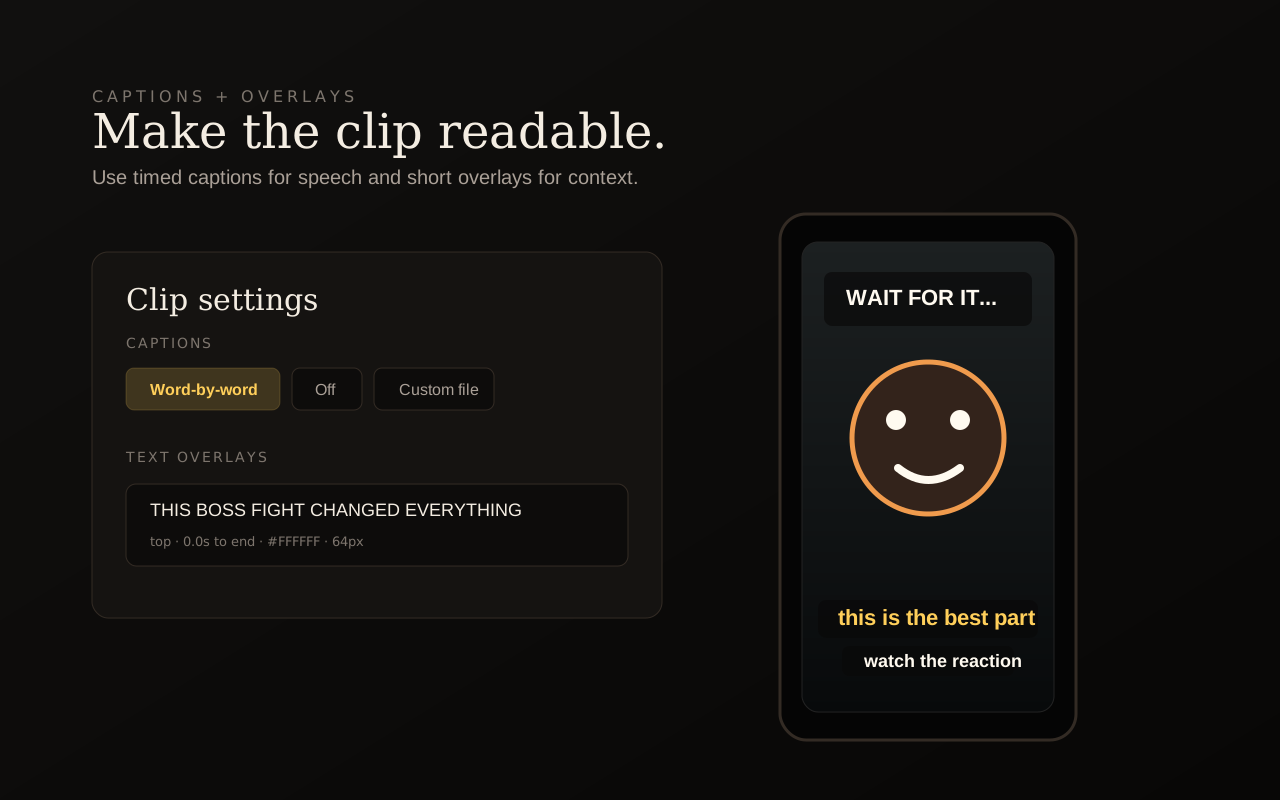
Use captions for spoken words and overlays for short labels, hooks, or callouts. - Step 02
Add an overlay when the clip needs context
Use Text overlays for short burned-in phrases such as a hook, speaker label, episode marker, callout, or context line. Keep overlay text short so it does not fight the captions.
- Step 03
Set timing and placement
Each overlay has text, position, start time, end time, color, and font size. Top is useful for a hook, center for a quick emphasis, and bottom only when captions are disabled or the overlay is very short.
- Step 04
Save to render the pixels
Captions and overlays are part of the rendered MP4. After changing them, save the clip and wait for the preview to refresh before downloading.
Good to know
Avoid crowding the frame
For most social clips, use either captions plus one short top overlay, or captions alone. Too much burned-in text makes a clip harder to watch on a phone.
Related
Was this article helpful?
If something here is wrong, out of date, or unclear, email support@sliver.video and we’ll fix it. Real humans read every message.