How to use Facecam layout
Draw the facecam anywhere on the source frame and Sliver turns it into a vertical short with facecam on top and gameplay below.
4 min read · updated 2026-05-20
- Step 01
Use it for gameplay or screen recordings with a facecam
Facecam layout is for videos where a small camera feed appears over gameplay, a demo, or a screen recording. For podcasts, interviews, and talking-head videos without gameplay, Speaker framing is usually better.
Screenshot pendingFacecam layout diagram showing selected facecam and final stacked output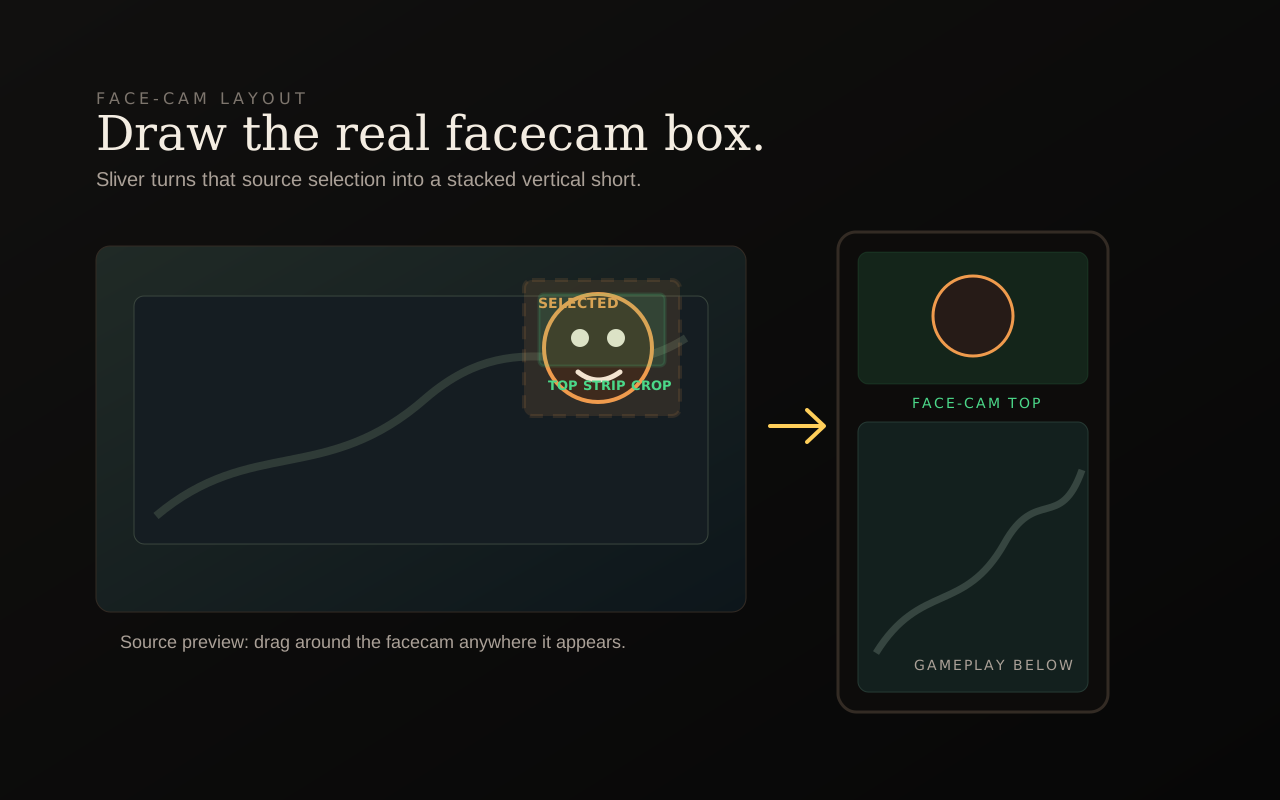
The dashed box is the facecam you select. The solid top crop is what fills the top band of the final short. - Step 02
Switch framing to Facecam
Open a short in the editor, find Framing, and choose Facecam. Sliver starts with a starter box, but the box is only a suggestion; the selected rectangle is what matters.
- Step 03
Draw around the facecam
On desktop, drag a box around the facecam in the source-frame preview. The overlay shows two rectangles: selected facecam and top strip crop. The top strip crop is the exact crop that will fill the facecam band in the final 9:16 render.
- Step 04
Fine-tune with X, Y, W, and H
Use the numeric controls when the facecam edge needs precision. X and Y move the selected box; W and H resize it. The Final layout preview updates as you adjust the numbers.
- Step 05
Save and render
Click Use facecam layout if needed, then Save. Sliver renders the facecam crop on top and tries to keep the gameplay crop away from the selected facecam area below.
Good to know
Why it is not left, center, or right anymore
The old mental model assumed the camera was always near a fixed edge. The current Facecam layout lets you draw the real camera position anywhere in the source video.
Mobile editing
The drag-to-draw source-frame overlay is desktop-only because it needs mouse precision. You can still switch framing and use generated clips from mobile.
Related
Was this article helpful?
If something here is wrong, out of date, or unclear, email support@sliver.video and we’ll fix it. Real humans read every message.